



English
Online Meeting Link
Deploy and administer Online Meeting Link in SharePoint and Microsoft Teams.
Online Meeting Link creates a Microsoft Teams meeting and lets the signed-in user copy its join information. It does not send invitations, create an Outlook calendar entry, manage participants, or maintain its own data store.
The application supports English and German. It can run as a SharePoint web part, a SharePoint full-page app, a Teams personal app, or a Teams tab. In app pickers, look for Online Meeting Link or Teams-Besprechung, depending on the language and any supported administrator customization.
Create, copy, and share
Create a meeting
Enter a subject, choose the start and end times, and select Save. The meeting is created for your signed-in Microsoft 365 account, without sending invitations or creating a calendar entry.
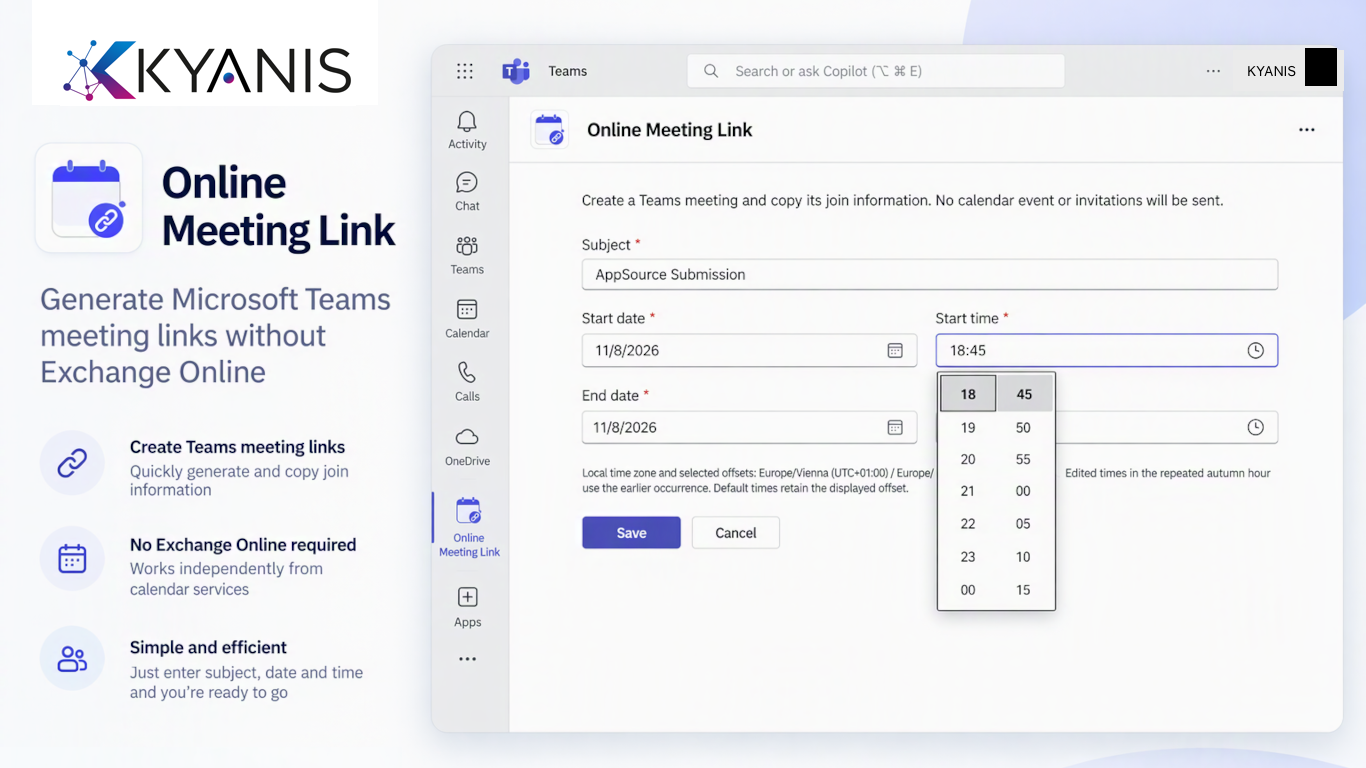
Create a Teams meeting from a single form.
Copy the join information
Once the meeting is ready, copy its join information and paste it into your preferred message or application. You decide whom to share it with.
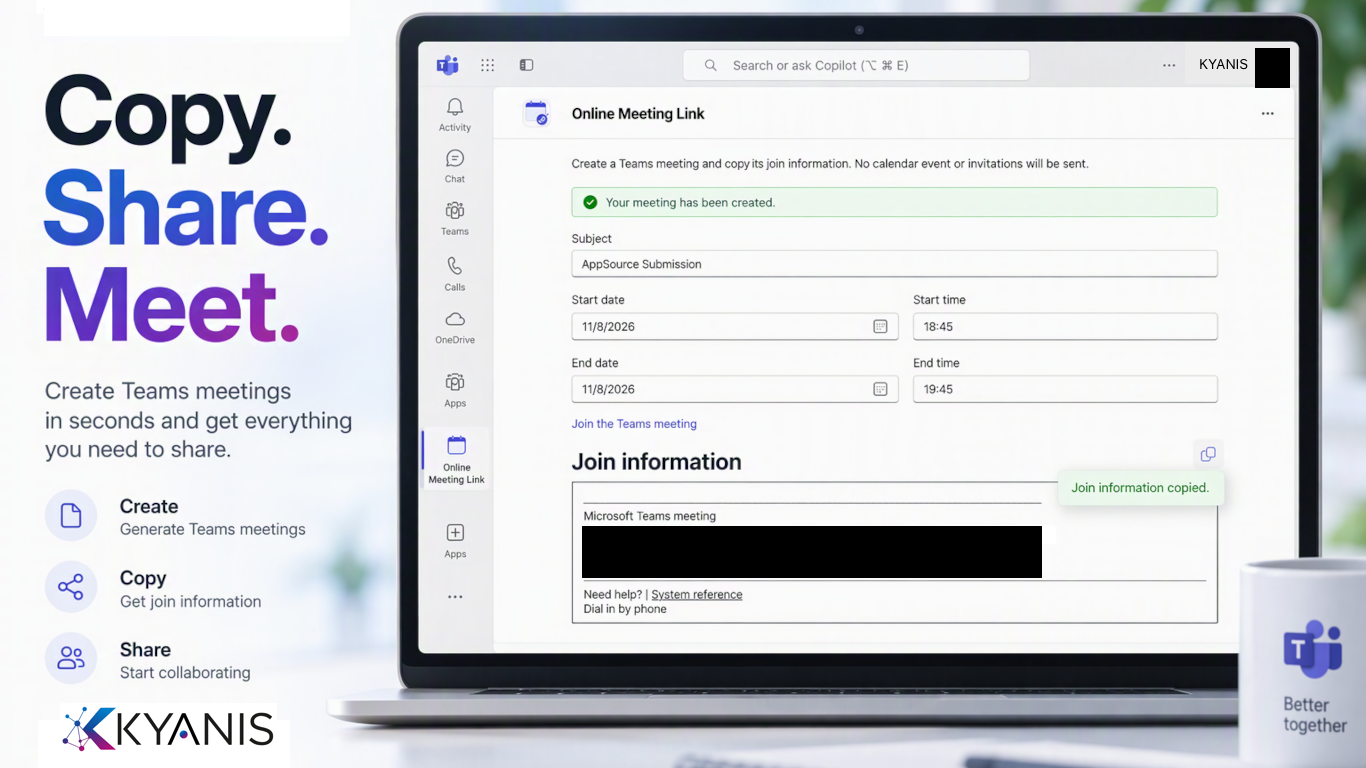
Copy the join information, then share it with participants.
Light, dark, and high-contrast designs
Online Meeting Link follows the Teams theme. The same meeting workflow is available in light, dark, and high-contrast designs; this is separate from administrator customization of the app’s name or branding.
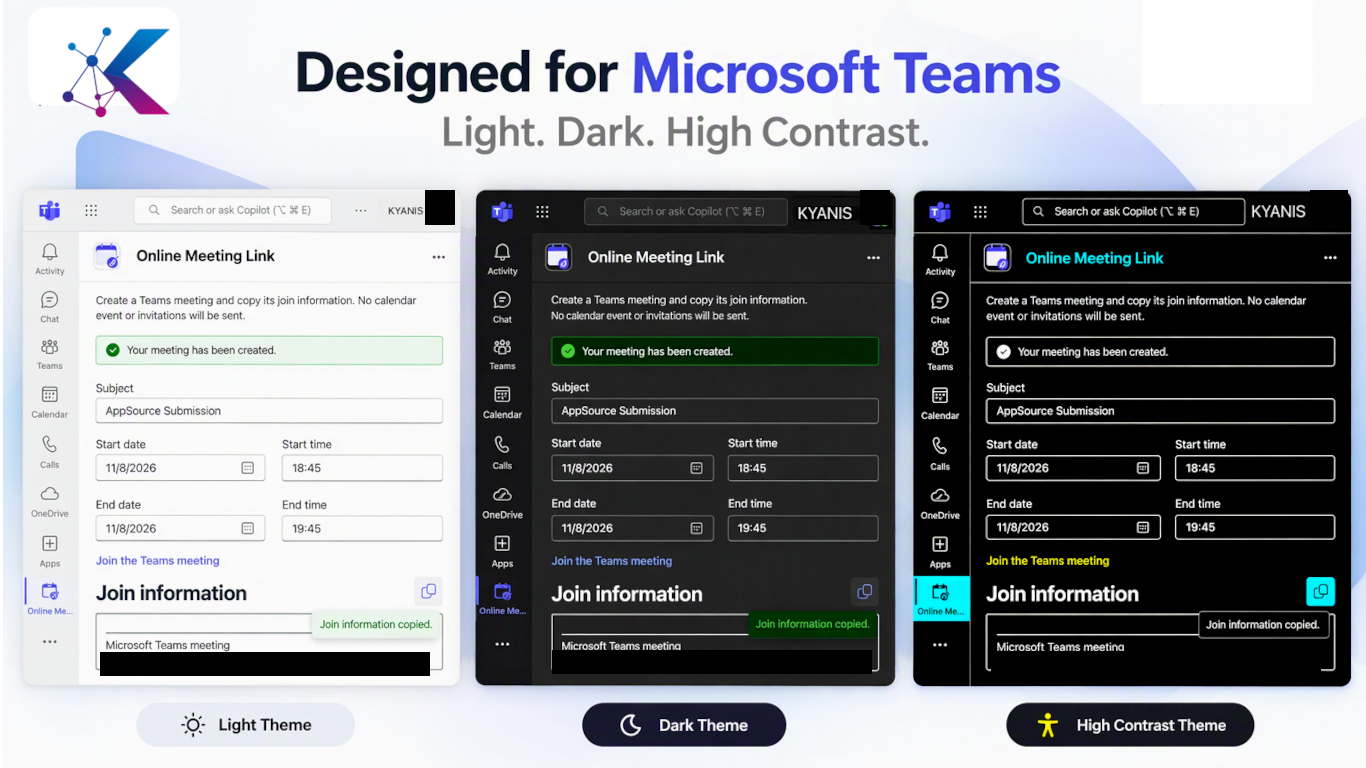
One app in three Teams designs.
User guide
- Using Online Meeting Link: create a meeting, copy its join information, and troubleshoot common issues.
Administrator guides
- Install Online Meeting Link: upload the SharePoint package, deploy it tenant-wide, approve the required API permission, and sync to Teams.
- Customize Online Meeting Link in Teams: check whether branding customization is available and, if supported, apply it.
- Roll out Online Meeting Link to a user group: automatically install and pin the personal app for a selected audience.
What deployment does
| Action | Result |
|---|---|
| Tenant-wide SharePoint deployment | Makes the component available across SharePoint sites; does not place it on pages |
| SharePoint API approval | Authorizes the requested delegated Microsoft Graph scope; does not override user licensing or meeting policies |
| Add/Sync to Teams | Publishes the Teams app to the organization’s catalog; does not install it for every user |
| Group installation | Installs the personal app for the selected audience |
| Group setup policy | Controls the app-bar pin for users whose effective policy is that policy |
Before production use
The current source uses SharePoint Framework 1.24.1. Complete acceptance testing in your own tenant. Operator identity and legal URLs must also be completed before releasing a package. These guides describe administrator procedures, not a certification that a particular tenant deployment has passed.